VulCode

Client panel: projects, tickets and invoices

One account for everything we do together: the project schedule and reports, documents, a chat with the team, invoices with a wallet, tickets and the services you ordered. The panel itself is in Polish.

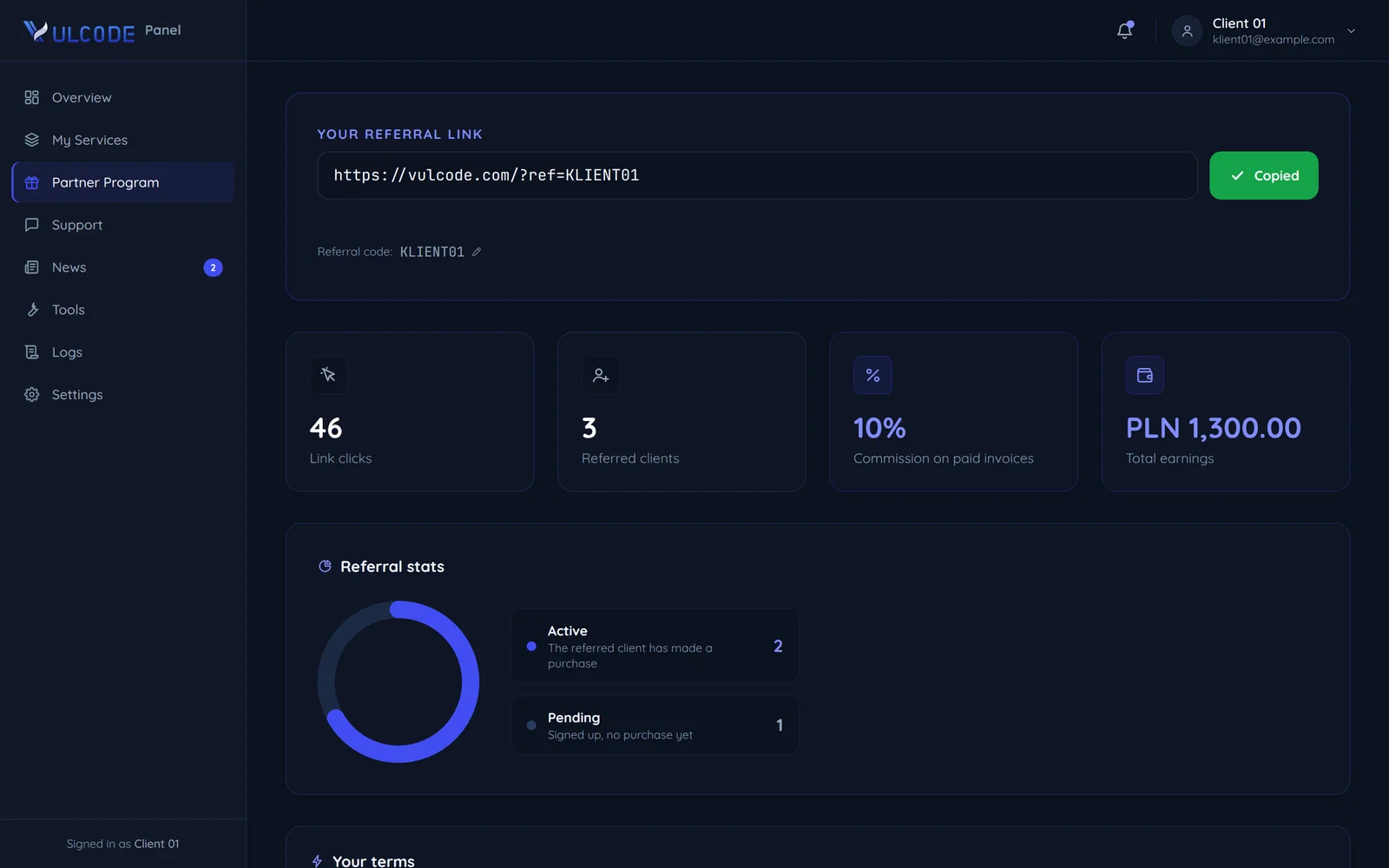
A sample screen of the referral programme in the panel
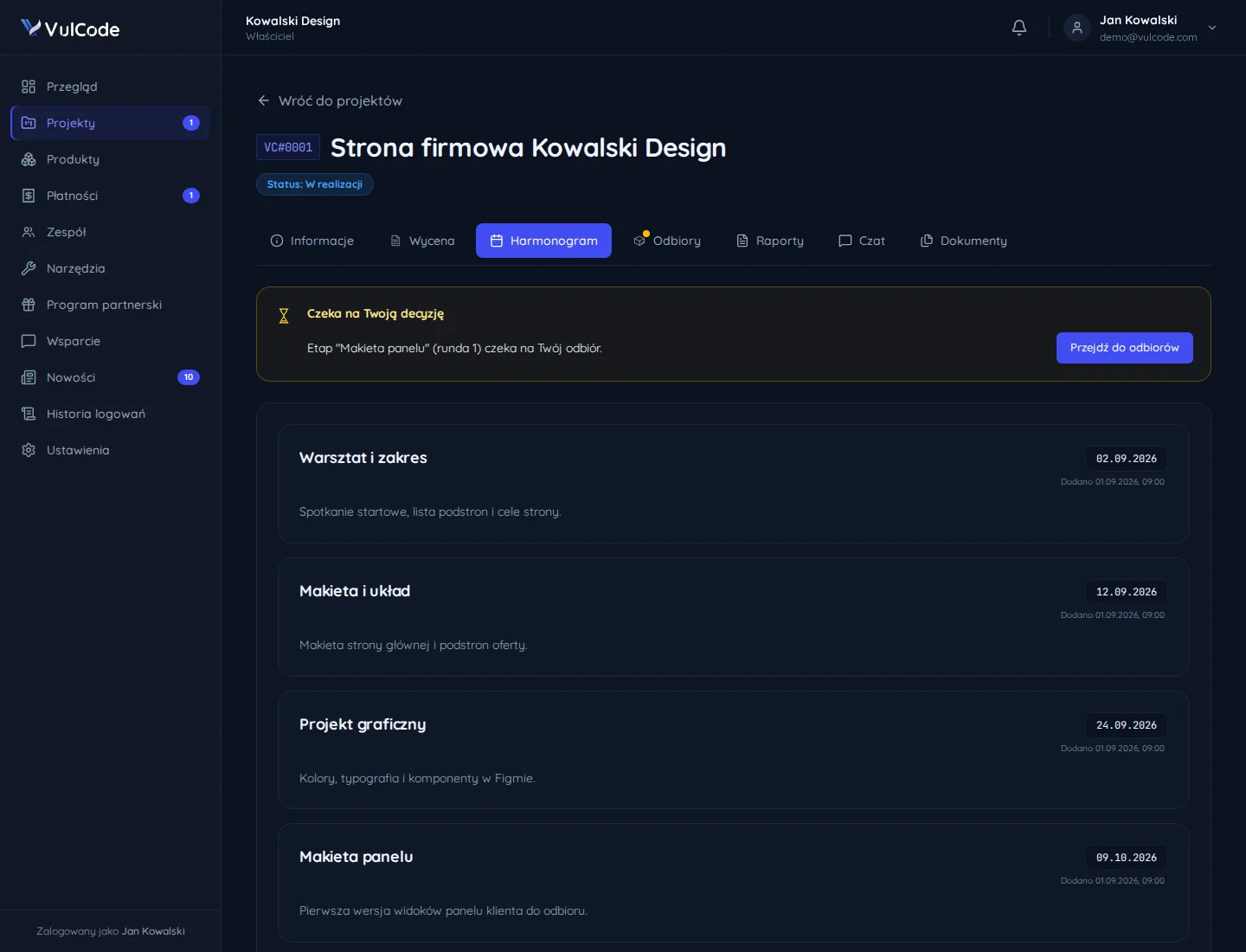
A project schedule in the client panel on a demo account
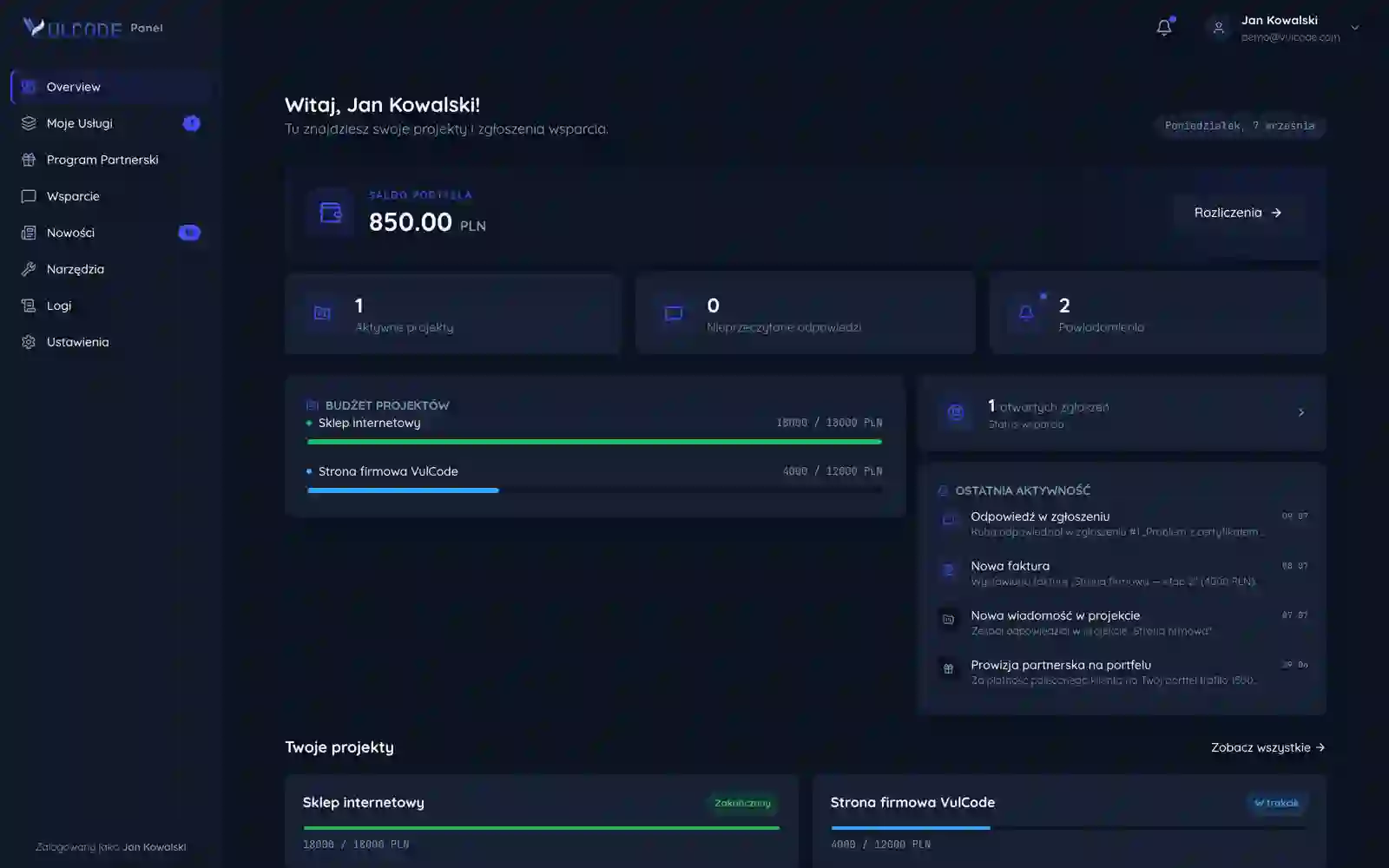
The client panel overview on a demo account

Overview: where everything stands, on one screen

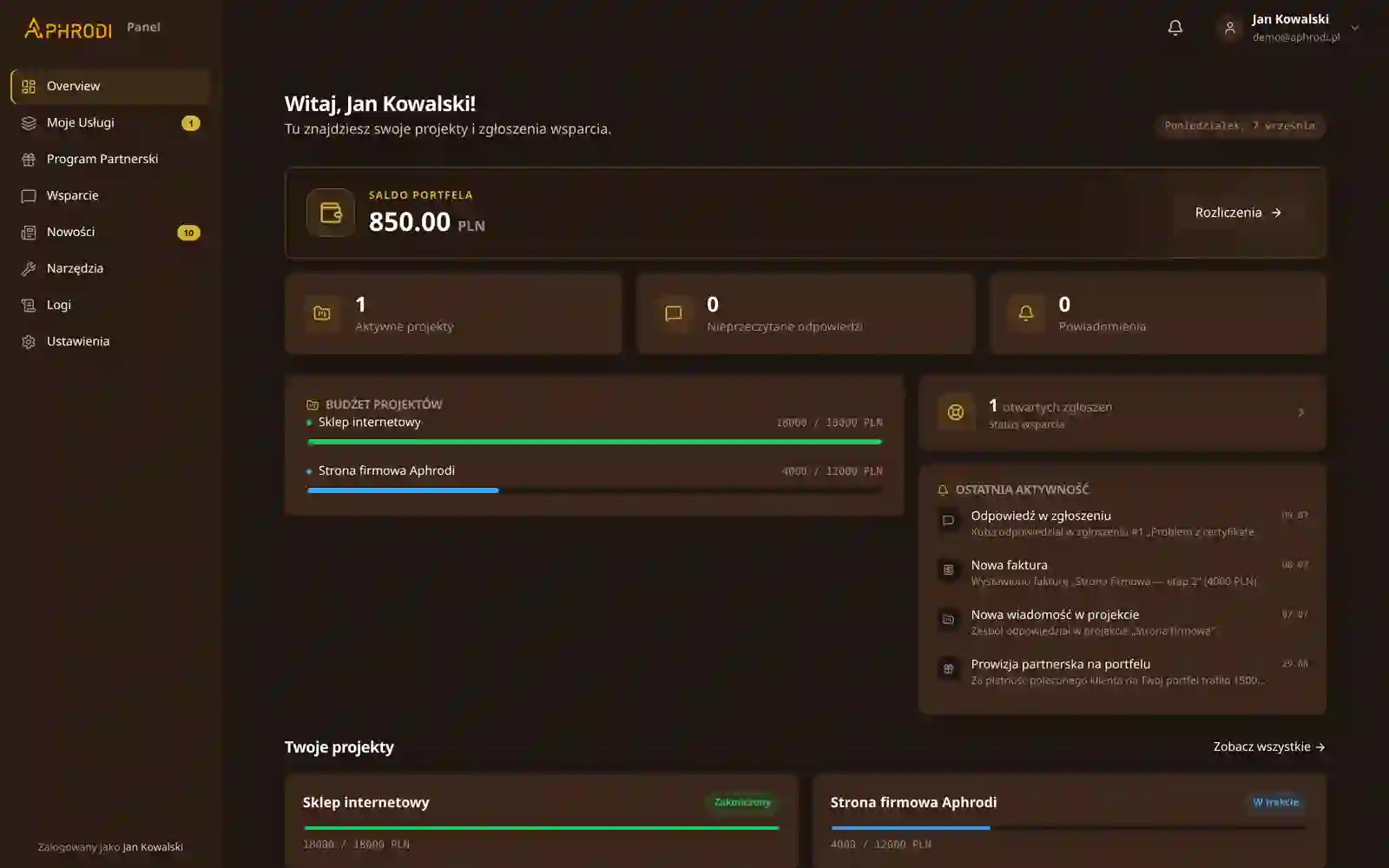
After signing in you see what needs attention before you start looking for anything. The same panel serves Aphrodi's clients, in Aphrodi's identity: one architecture, two brands.

  • Wallet balance

    What is on your account, with a shortcut to payments.

  • Three numbers first

    Active projects, unread replies and notifications: you see at once whether anything is waiting for you.

  • Project budgets

    For each project: how much of its value is paid.

  • Recent activity

    Ticket replies, new invoices, project messages and commissions, in order.

What flows into the account and out of it

Everything goes through the account: money, messages and notifications pass through it in set directions.

Your account

Projects, invoices, tickets and services

You switch each channel on separately for six categories: projects, tickets, payments, news, the affiliate programme and system messages.

The VulCode team

Both ways
  • The quote, questions and agreements in the project chat.
  • Replies to tickets, in one thread with its priority.

Payment gateway

Into the account
  • Topping up the wallet with an amount in PLN.
  • The funds are on the balance once the gateway confirms the payment.

Invoices

Both ways
  • An invoice with its number, amount, date and status under Payments.
  • You pay it from the wallet with one button.

Services

Out of the account
  • A service ordered in the panel starts its management panel once the payment for its invoice is booked.

Referred clients

Into the account
  • Commission on invoices paid by clients you referred goes to your wallet.
  • Every commission has a status: pending, in the wallet or rejected.

Email

Out of the account
  • Notifications in the categories you choose.
  • Links to verify the account, set a new password, change the address and delete the account.

Discord

Both ways
  • Signing in with Discord.
  • Direct messages from our bot with notifications.

Phone and computer

Out of the account
  • The panel installed as an app, with push notifications on every device.

A project in the panel from quote to handover

Every project has one window in the panel. What you see in it changes with the status: from the quote in the chat through the schedule and reports to the handover documents.

  1. Quote

    The project is created and the team prepares the quote. The amount, stages and deadline arrive in the project chat.

    VC#0001Company websiteStatus: Quote
    Finances

    The project has no quote yet. You will see the amount here once we prepare it.

    Links
    The Figma link appears once the visual design starts.
    The test version appears once there is something to show.
    The repository has not been shared yet.
    Details
    Project goal
    A new marketing website with a blog and an offer.
    Audience
    Small businesses looking for hosting.
    Estimated deadline
    15.08.2026
    Last message
    14.07.2026, 10:12
    Chat
    You14.07, 09:40The project description is under Information. We are waiting for the quote.
    Project leadVulCode team14.07, 10:12The quote is ready: scope, stages and deadline are in this message. Once you accept, we set up the schedule.
  2. In progress

    The quote is accepted. The schedule gets its stages with dates, and Information the project value and how much is paid.

    VC#0001Company websiteStatus: In progress
    1. Visual design in Figma20.07.2026

      The layout of the home page, offer and blog for approval.

    2. New layout on the test version01.08.2026

      The home page and blog on staging, with a link under Information.

    3. Home page launch15.08.2026

      The new layout published in production.

    Chat
    Project leadVulCode team31.07, 16:05Tonight we put the new layout on the test version. I will let you know in this chat.
  3. In review

    The test version waits for your comments. Reports show what we did and what comes next.

    VC#0001Company websiteStatus: In review
    Weekly report #108.08.2026
    • New home page layout
    • Blog configuration

    Next: the form integration.

    Chat
    You08.08, 18:20Going through the test version, comments tomorrow.
  4. Completed

    The project is handed over. Under Documents you download the team's files, and the team sees that you have them.

    VC#0001Company websiteStatus: Completed
    Documents
    • Acceptance report.pdfFrom the VulCode team
    • Content editing guide.pdfFrom the VulCode team
    • Page copy.docxYour file

    We record a download as a view of the document, so the team knows you have it.

    Chat
    Project leadVulCode team15.08, 12:30The site is live in production and tested. The handover documents are under Documents.
  • Information

    The project goal, audience, value and how much is paid, plus links to Figma, the test version and the repository once they are ready.

  • Schedule

    Stages with dates. It fills in after the quote, once the stages are agreed; until then it says when it will appear.

  • Reports

    Progress reports, one under another, each with its date.

  • Chat

    The conversation with the team and the quote. If a message fails to send, its text stays in the box, so you do not type it twice.

  • Documents

    You upload your files and download ours. We record the download, so the team knows you have the document.

Account security without writing to us

You set the password, sessions and account deletion yourself, in the account settings.

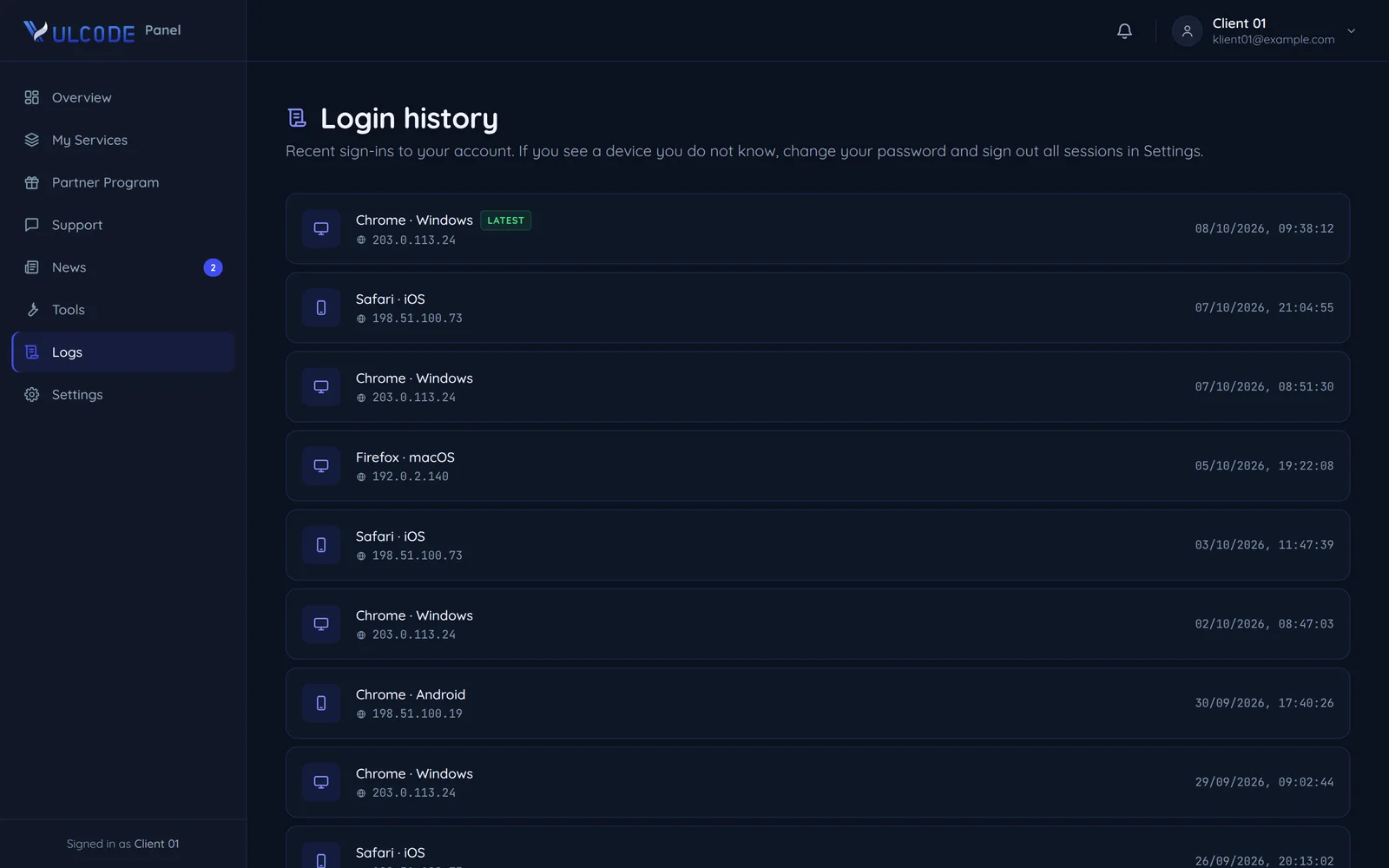
The sign-in history with devices and browsers
Sign-in history

Recent sign-ins with the device and browser. An unknown device is the signal to change your password.

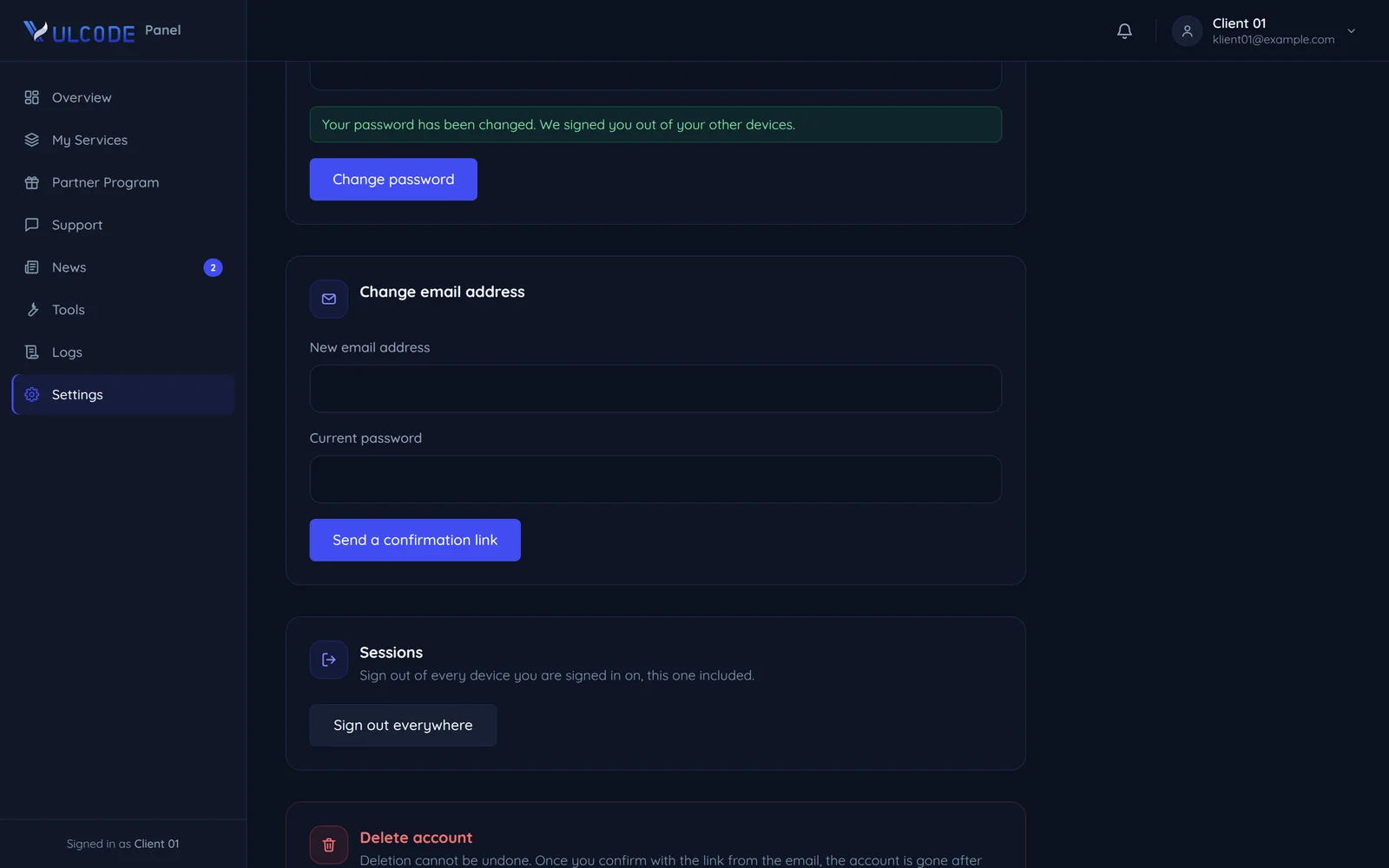
Account settings with a password change and signing out everywhere
Password and sessions

A password change signs out your other devices, and one button ends every session of the account, the current one included.

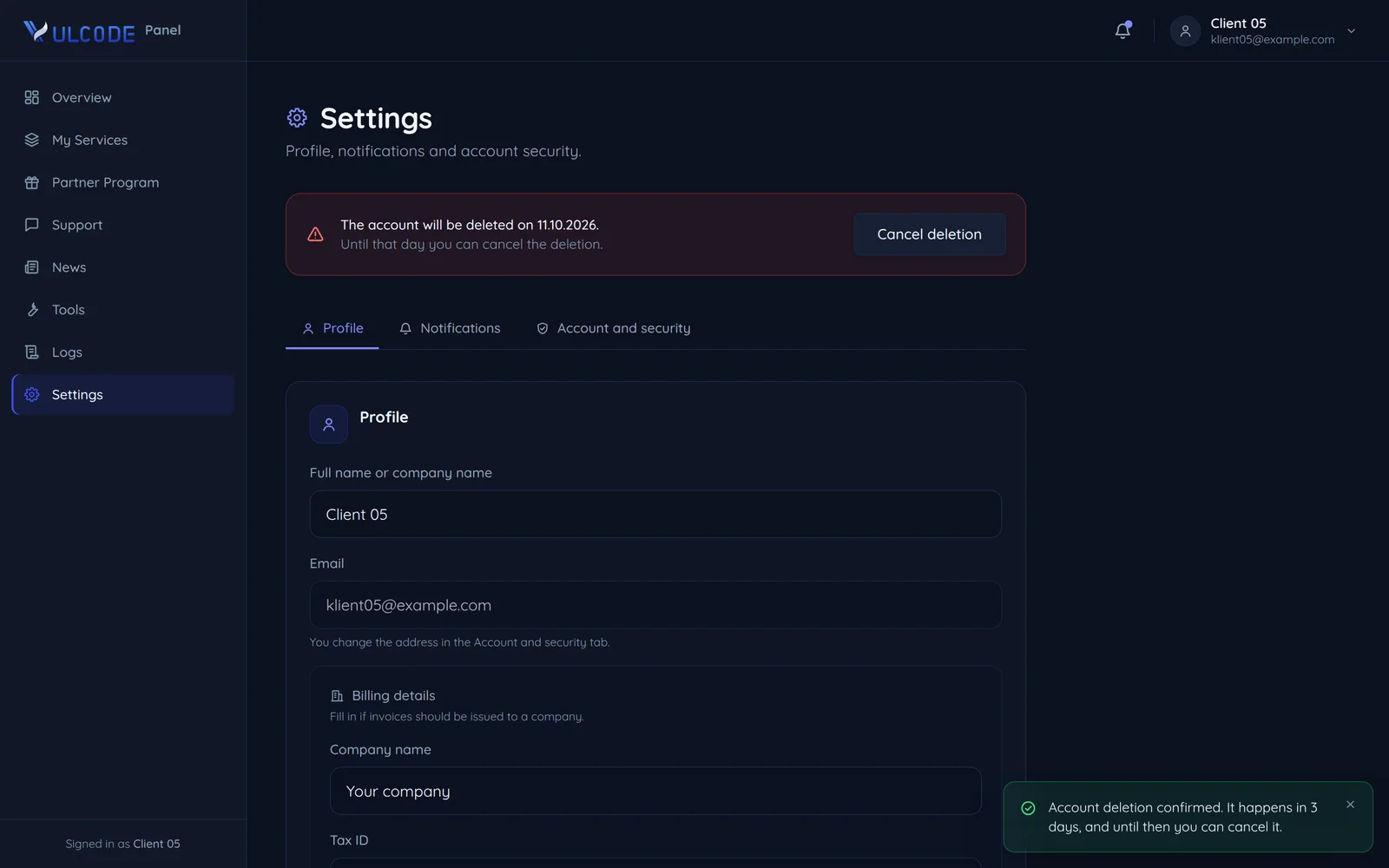
Account settings with a scheduled deletion and a cancel button
Deleting the account

You confirm the deletion request with a link from an email, and for 3 days you can still cancel it.

Questions about the account

Already working with us?

Sign in with the address our messages go to. If we are just starting, create an account and submit your project under Projects.

Forgot your password? Send a reset link