
WCAG accessibility audit and fixes in the code
We run an accessibility audit against WCAG 2.2: keyboard, screen reader, contrast, forms and error messages. Then we fix the code and prepare an accessibility statement if your site needs one.
What digital accessibility is
It means building a site so that blind and low-vision people, keyboard-only users and people with motor impairments can use it too. The reference point is WCAG 2.2 at level AA. It groups requirements under four principles.
Perceivable
- Text alternatives (1.1.1)
- Contrast of at least 4.5:1
- Text resize up to 200%
Operable
- Keyboard operation (2.1.1)
- Visible focus (2.4.7)
- Targets at least 24 by 24 pixels (2.5.8), new in WCAG 2.2
- Focus not obscured (2.4.11), new in WCAG 2.2
Understandable
- Labels and instructions (3.3.2)
- Error identification (3.3.1)
- Sign-in without puzzles (3.3.8), new in WCAG 2.2
Robust
- Name, role and value of elements (4.1.2)
4.1.1 Parsing: obsolete and removed from WCAG 2.2
Who the rules apply to
The scope depends on the type of business, so we check it at the start. This is not legal advice, just a starting point for the conversation.
The act of 4 April 2019 on digital accessibility
- Public bodiesAn accessible site and apps, plus an accessibility statement.
The act of 26 April 2024 on the accessibility of certain products and services
- Online storesE-commerce services for consumers.
- Banking, e-books, passenger transportServices and the related sites and apps.
A manual test, a tool and an overlay
Three things often treated as the same. Overlays do not fix the page code, and screen readers use the code, not the overlay. We audit by hand, with a screen reader and the keyboard alone, and add automated tools, which catch only part of the problems.
- Whole journeys, start to finish
- Focus and order
- Error messages
- Contrast and zoom
- Headings and page structure
- Alt text and descriptions
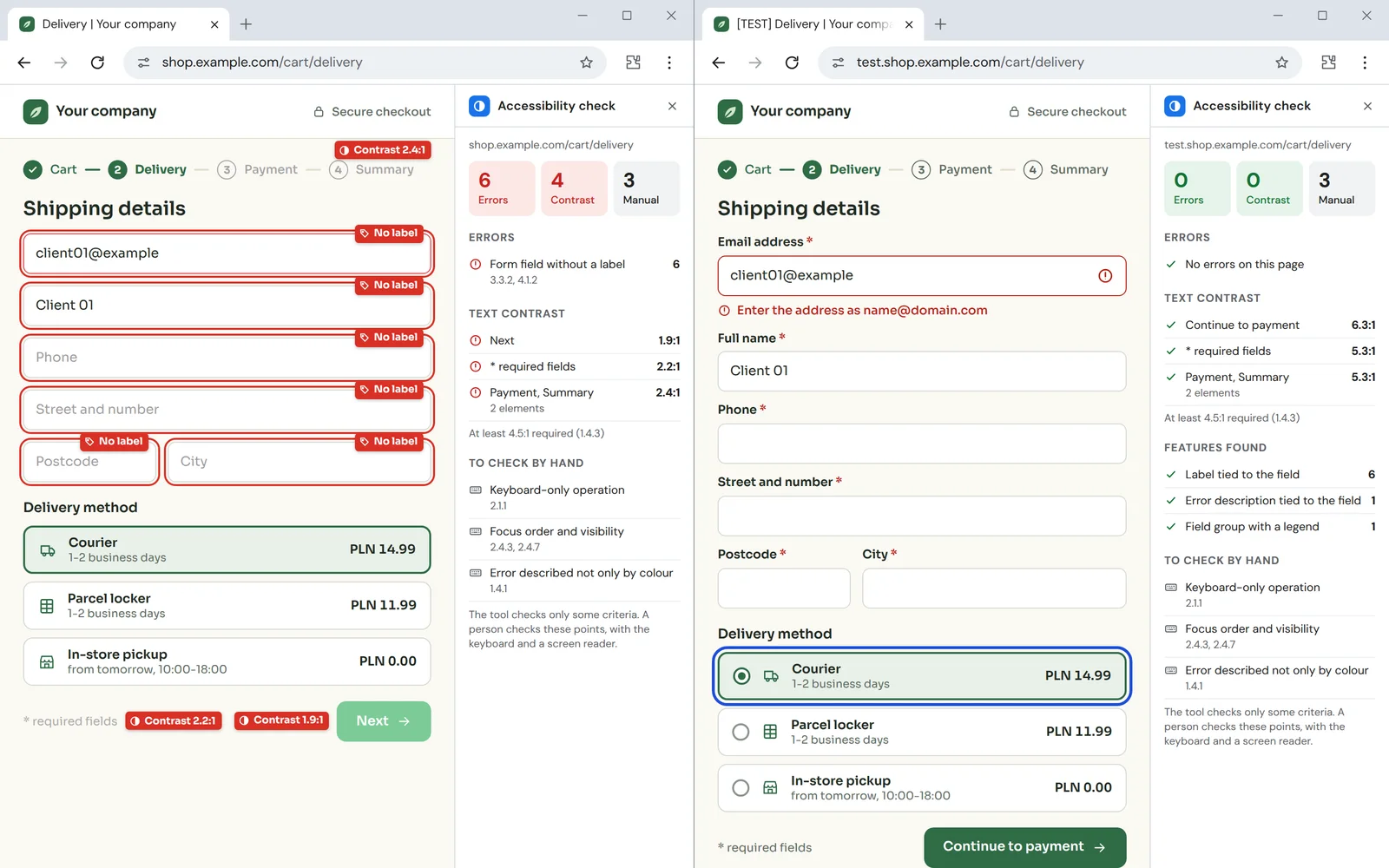
One form field before and after
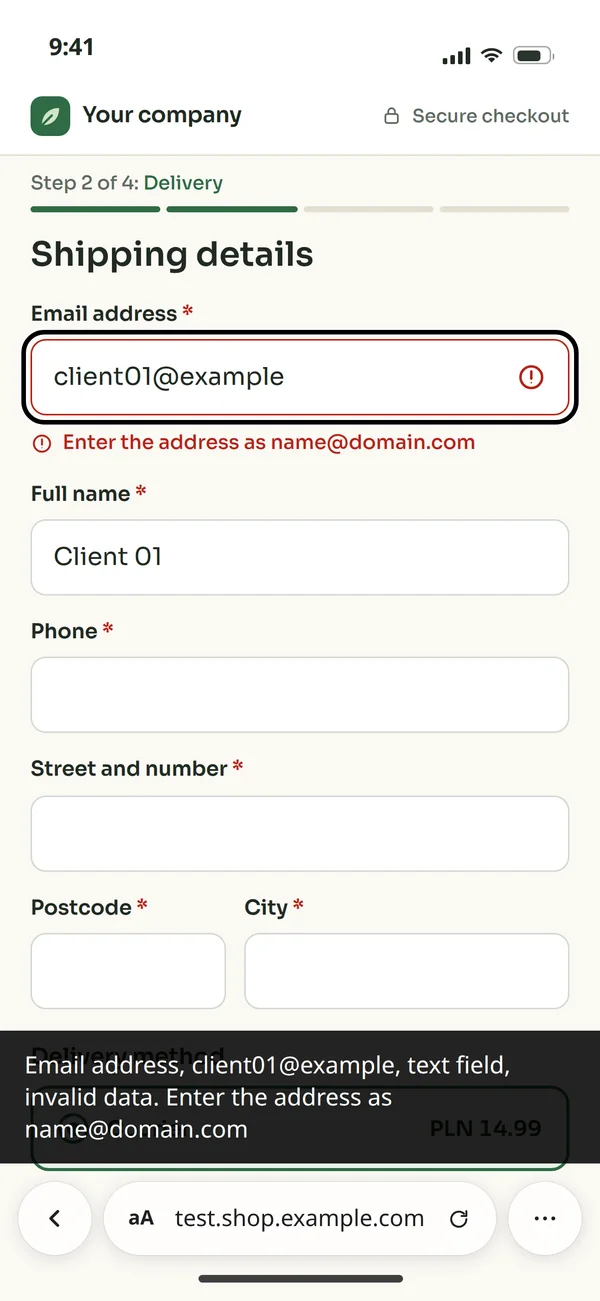
The most common problem in stores and panels: the error shows only as a colour, and the screen reader hears nothing.
- 1.4.1A hint instead of a labelA hint inside the field disappears while typing and is no label, and the colour of the border alone must not tell of the error.
- 3.3.2A label tied to the fieldA label tied to the field, read out by the screen reader.
- 1.3.5AutocompleteThe field tells the browser it expects an email address, so the browser fills it in by itself, which helps people with motor difficulties.
- 3.3.1The error in wordsThe error is described in words and announced by the screen reader when it appears.
What a report entry looks like
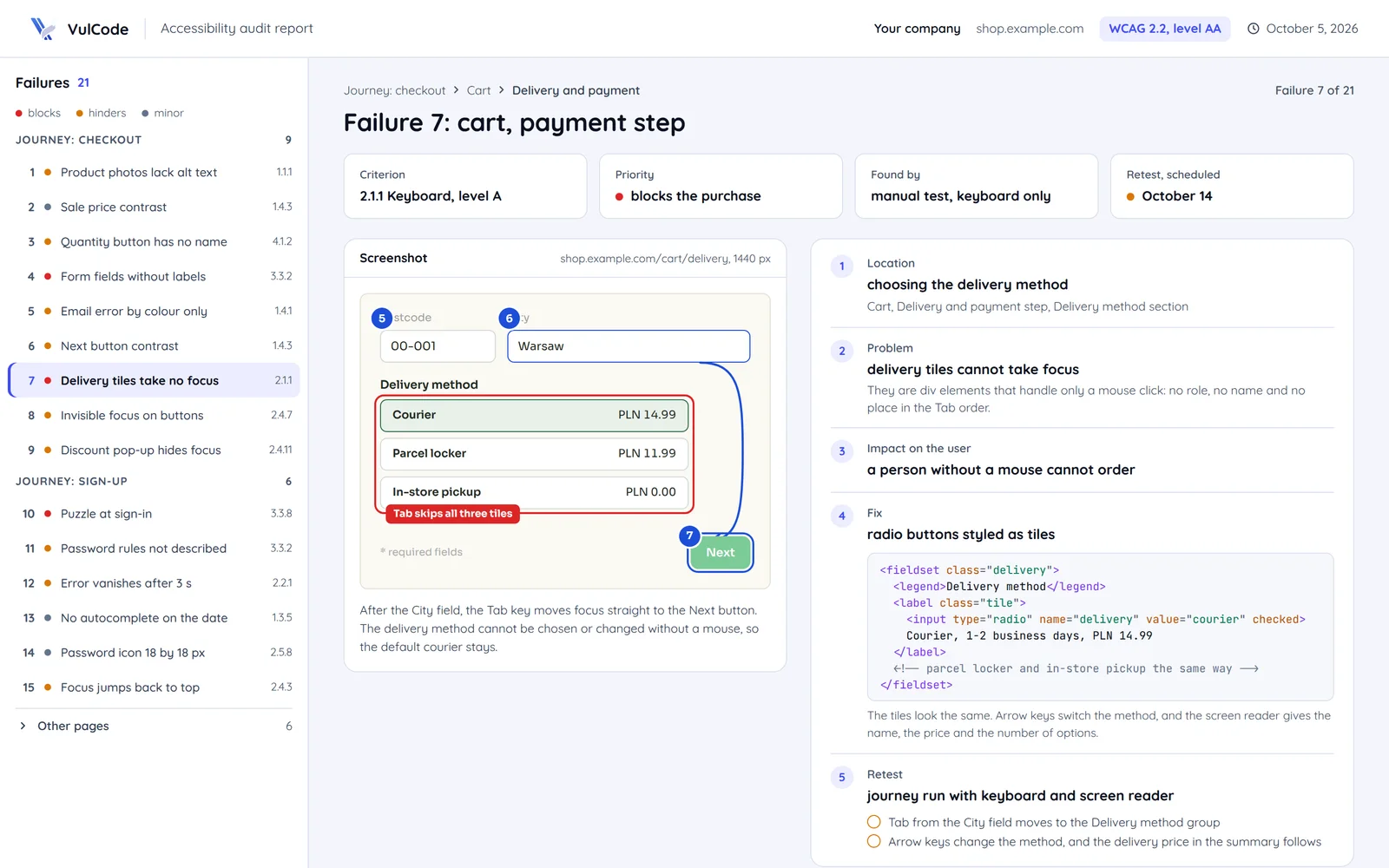
One failure from a report and what each of its parts means.
- blocks
- 3
- hinders
- 9
- minor
- 3
- Criterion
- 2.1.1 Keyboard, level A
- Priority
- Blocks the purchase
- LocationChoosing the delivery methodA place in the journey, not just the page address, so it is clear which element to fix.
- ProblemDelivery tiles cannot take focusThe problem described with the WCAG criterion it relates to.
- ImpactA person without a mouse cannot orderThe impact on the user decides the priority.
- FixRadio buttons styled as tilesA concrete code change, usually with no change in look.
- RetestJourney run with keyboard and screen readerAfter the fixes we run the journey again.
In the report every failure also has a screenshot.
How the accessibility audit works
From choosing the pages to a test after the fixes, the same for a site that must meet WCAG and for one that simply wants to serve every customer.
- Pages and journeysWe pick representative page types and the key journeys, such as checkout or sign-up.You get: A quote and a date
- Manual testingWe go through the journeys with the keyboard alone and a screen reader, and check contrast and 200% zoom.You get: A list of failures in the journeys
- Automated testingTools check the rest of the pages: missing labels and alt text, heading structure and the descriptions of elements for screen readers.You get: The list completed
- ReportEvery failure with its WCAG 2.2 criterion, location and screenshot, and how to fix it. We give the place in the journey, not just the page address.You get: A prioritised report
- Fixes and retestWe fix the code, retest the journeys and, if needed, prepare the accessibility statement. We show your editors how to add images, tables and documents so the site stays accessible over time.You get: The fixed site and the statement
A new project or an existing site
For sites that must meet WCAG, and for those that simply want to serve every customer.
A new project
- The site, store or panel is still being built.
- You want to avoid fixes after the fact.
- Components, colours and forms designed for WCAG
- A site accessible from its first version
Accessibility planned from the start: components, colours and forms designed for WCAG.
An existing site
- A store, digital service or public site is already live.
- You need an accessibility statement.
- Audit
- A prioritised report
- Fixes in the code
- Retest
- Accessibility statement
An audit, a prioritised report, fixes in the code and a retest. The audit follows the five stages above, and we prepare the statement after the fixes.
Common questions about digital accessibility
Answers about the law, the audit and the accessibility statement.

Read next
Our article on the law and WCAG 2.2, and the services that often go with an audit.
Want to check your site's accessibility?
Send us the site address and whether you need an accessibility statement. We will reply within an hour with questions and an audit quote.