
Sign in with Google, Microsoft and company SSO
Users sign in with an account they already have, and you store no more passwords. We implement Google, Microsoft, Apple and OpenID Connect company SSO, together with account linking, roles and the current OAuth security guidance.
One standard, many providers
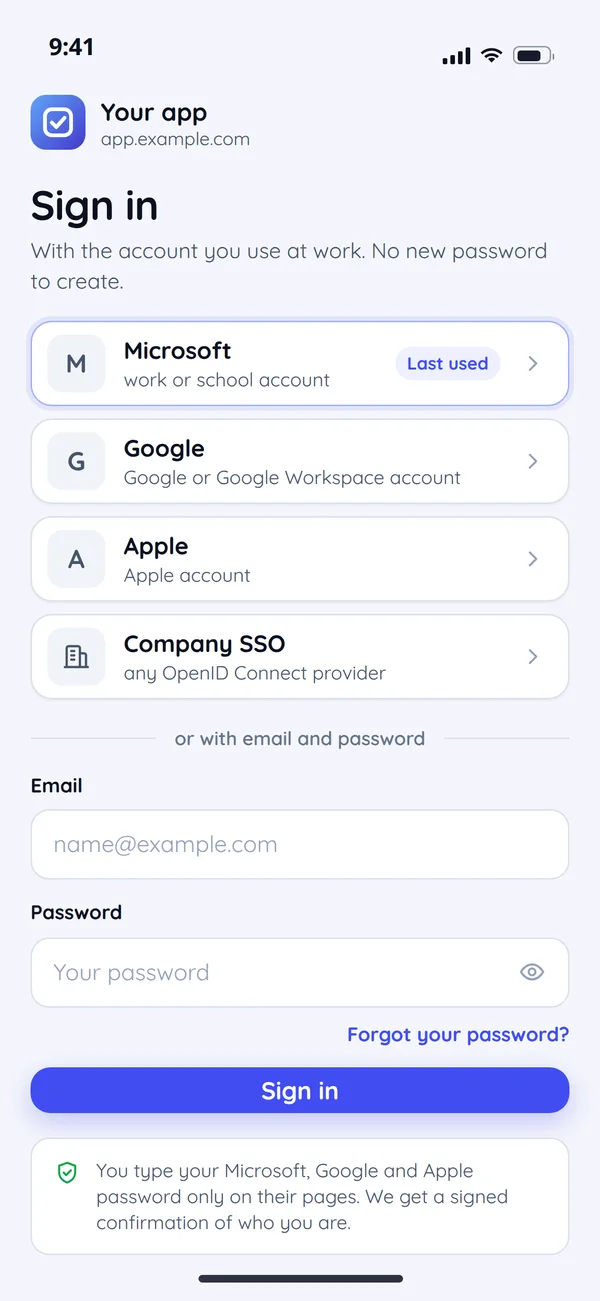
Google, Microsoft, Apple and most company SSO systems speak the same language: OpenID Connect on OAuth 2.0. So we build one login with swappable providers, not several separate integrations.
Your app
one OpenID Connect sign-in with swappable providers
- We recognise the account by Google's stable identifier, not by email.
- We recognise the company by the Google Workspace domain in Google's confirmation.
- The name arrives with the sign-in.
Microsoft Entra ID
- We recognise the account by the stable identifier of the person and their company.
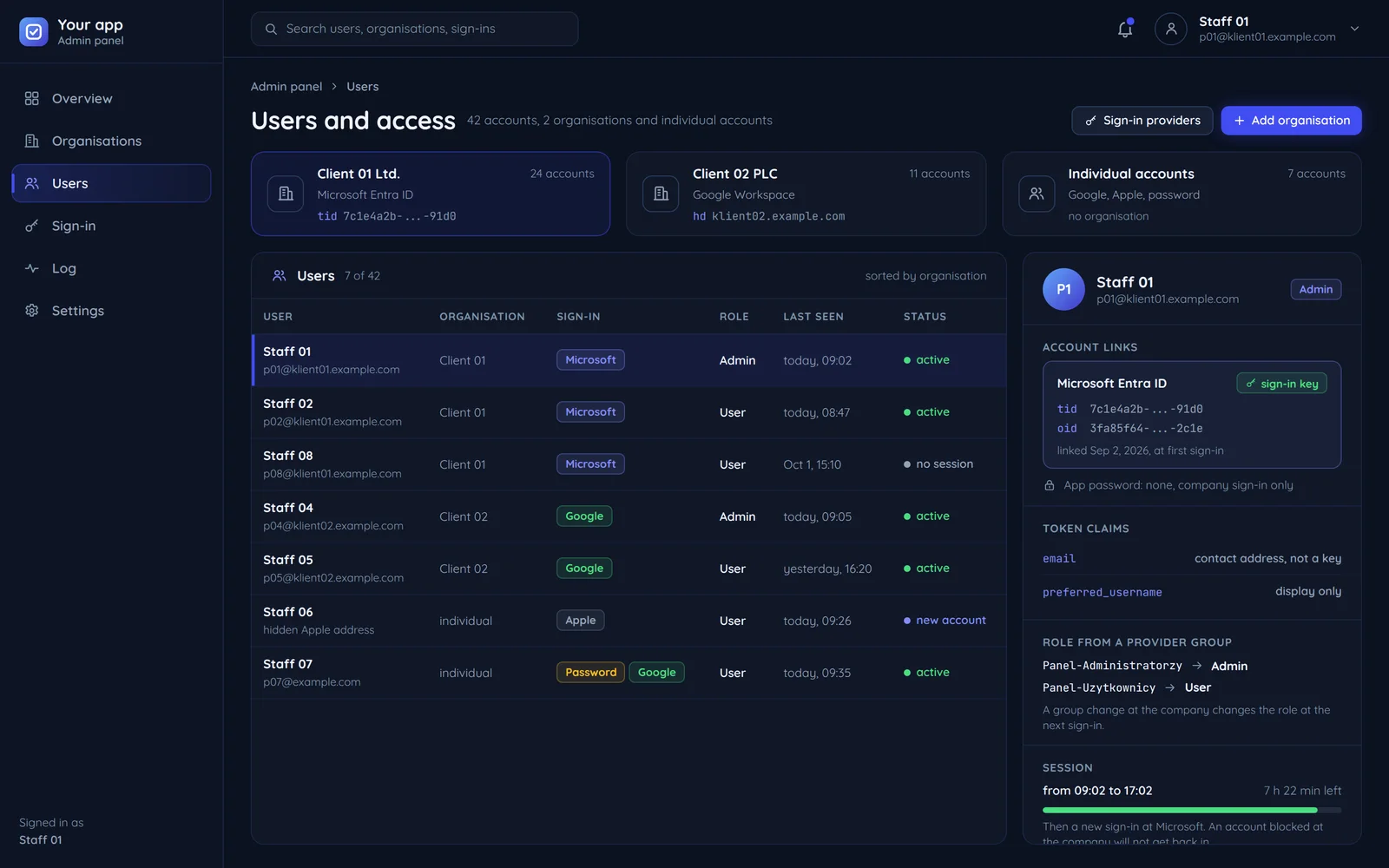
- We let in only your company, all companies or private accounts too, as you decide.
- App roles can come from the groups the company already has in Microsoft.
Apple
- We recognise the account by Apple's stable identifier.
- The name arrives only at the first sign-in, so we store it at once.
- The Apple sign-in key expires after six months at most, so we renew it automatically.
Company SSO, e.g. Keycloak or Okta
- It only has to support OpenID Connect.
- Another such provider is usually configuration, not a new integration.
How a secure sign-in runs
The app gets only a one-time code from the provider. It collects the user's details only after exchanging that code on the server, together with a secret key from the start of the sign-in, so an intercepted code is of no use to anyone.
- Usera browser or a phone
- Your appsign-in on the server side
- Identity providerGoogle, Microsoft, Apple, company SSO
- UserYour app
Step 1 of 7: picks "Sign in with Google"
- Your appIdentity provider
Step 2 of 7: a redirect with one-time safeguards
Two one-time markers tie the return from the provider to this one browser and this one sign-in, so nobody can hijack someone else's sign-in.
- Identity providerUser
Step 3 of 7: sign-in and consent at the provider
- Identity providerYour app
Step 4 of 7: a one-time code to the registered address
The provider compares the redirect address with the registered one character by character. That closes a whole class of redirect attacks.
- Your appIdentity provider
Step 5 of 7: the code exchanged together with the secret key from step 2
We always use the secret key from the start of the sign-in, in apps with their own server too, because it protects against someone slipping in a foreign code.
- Identity providerYour app
Step 6 of 7: a signed confirmation of who is signing in
- Your appUser
Step 7 of 7: signed in once the confirmation is checked
Every sign-in checked on the server
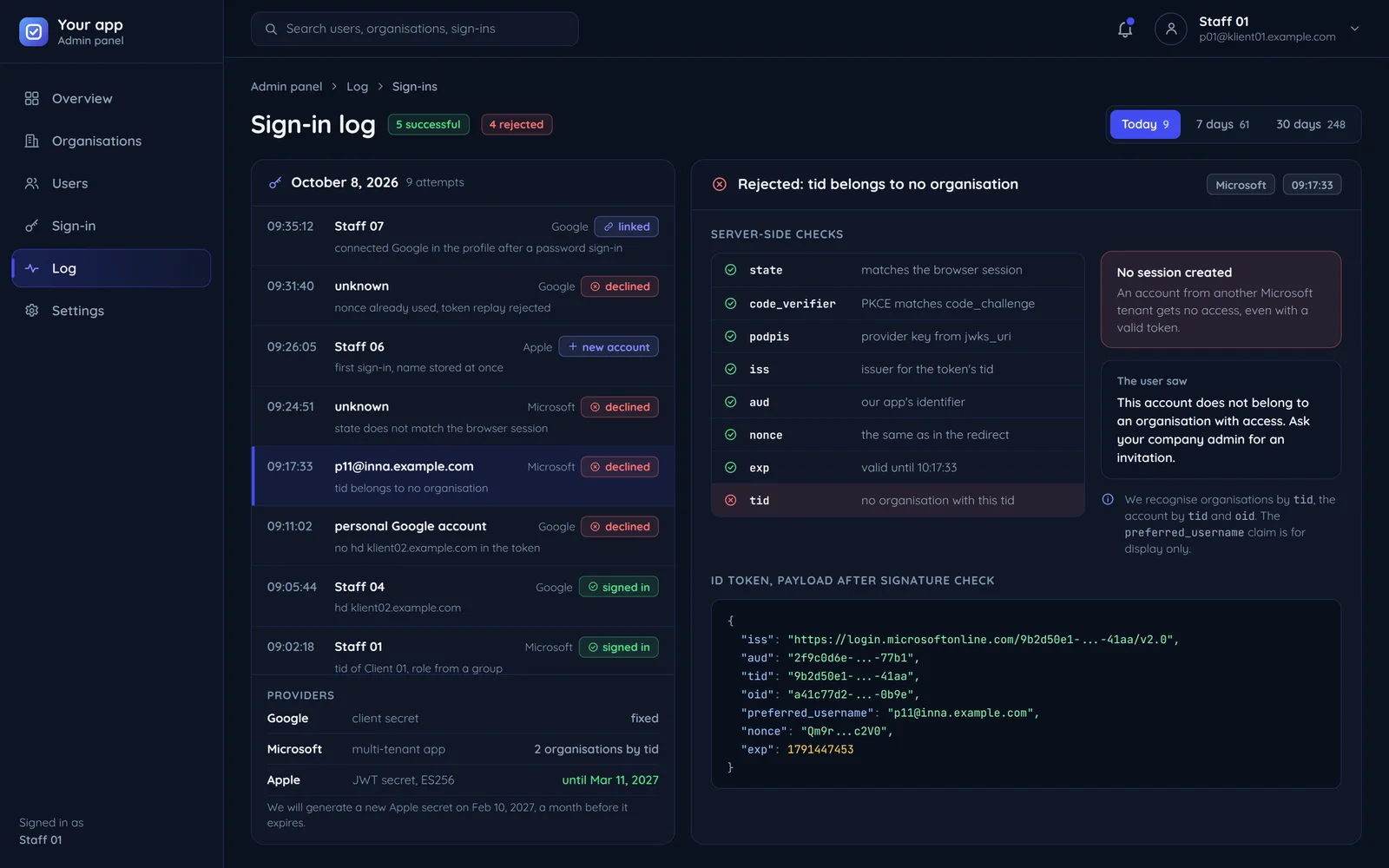
The sign-in confirmation comes from the provider, but the app still checks it on the server, field by field. The sign-in log shows what it rejected and why.
Signature, sender and recipient
We check that the confirmation was really signed by the provider and issued for your app, not for another one.
One confirmation, one sign-in
Every sign-in carries its own one-time marker, so an intercepted confirmation cannot be used a second time. Such an attempt lands in the log as rejected.
Company accounts only
We check the Google Workspace domain and the Microsoft company in the provider's signed confirmation, not in the page address, which can be tampered with.
What the provider passes to the app account
What arrives from the provider with the sign-in, where it goes and what it is for.
- Identity providerthe user's stable identifier→the only sign-in keyApp accountthe account-provider link
- Identity providerthe email, with whether it is verified→verified only, never as a keyApp accountcontact address
- Identity providername→Apple sends it once, so it is stored at onceApp accountdisplay name
- Identity providerthe company domain or identifier→assignment to the client companyApp accountorganisation
- Identity providerprovider groups or roles→a mapping agreed with youApp accountpanel permissions
- The account key
- We bind the account to the stable identifier of the person and their company, which stays the same even when the email changes. Microsoft recommends the same and advises against basing permissions on the email address.
- Never by email alone
- The most common mistake is linking accounts by email. Google says plainly that the email may not be unique and may change, and Microsoft forbids basing permissions on it.
- Linking accounts only deliberately
- A second provider joins an existing account only after signing in to it, never on email alone.
Common questions about SSO login
Answers about company SSO, password accounts, Apple sign-in, company-only access and the quote.

Read next
Where SSO login is used most often.
Want sign-in without more passwords?
Tell us who should sign in and with which accounts. We will reply within an hour with questions and a quote.